
Documentation
Extras
Automatic light, automatic volume, volume buttons, wheel presets, firmware plugins, background operation and keeping a parked wheel awake.
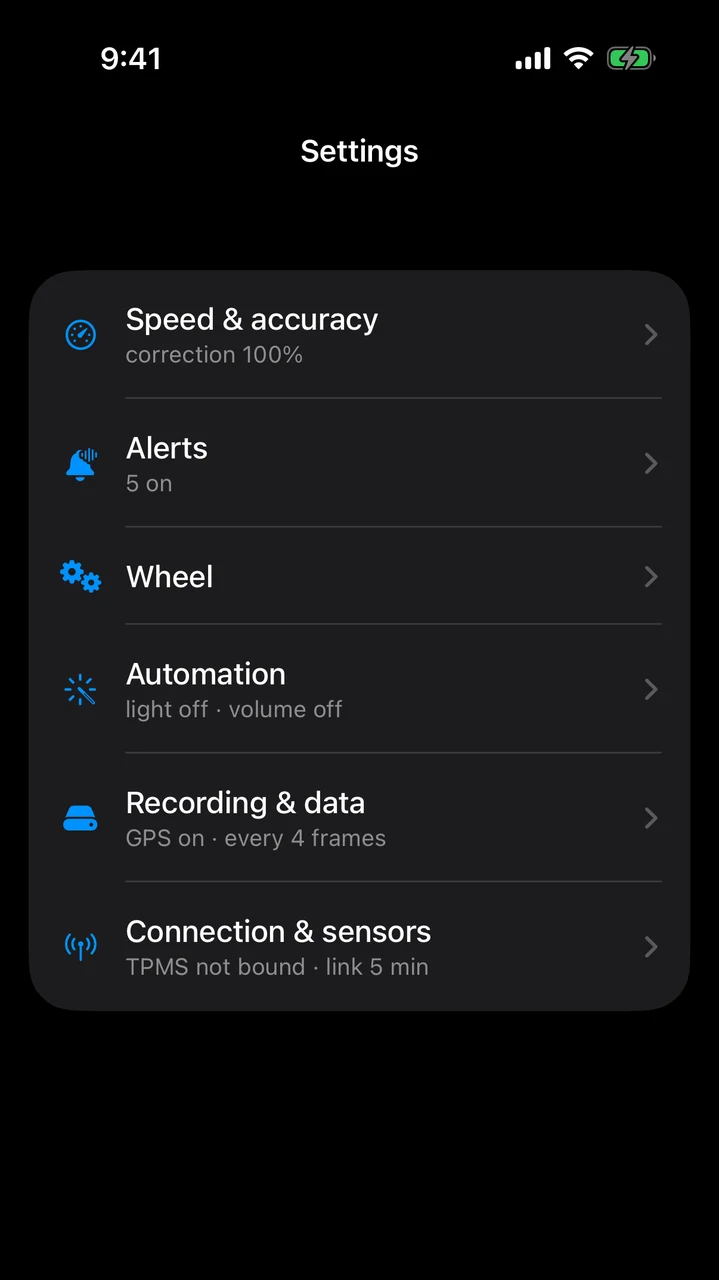
The three-dot menu has two distinct doors. Wheel settings, under Wheel, opens what gets written into the machine itself: hardware, presets, plugins, the shutdown timer. Settings, under App, is everything else, the part that lives on the phone, in seven sections: Speed & accuracy, Alerts, Map & GPS, Automation, Data, Connection & sensors, and Diagnostics. What appears depends on the wheel: a section with nothing to show for your model does not appear at all. Sections state on their row what is currently set, so the configuration reads at a glance without opening anything. A section with nothing to say — the wheel has not answered, the item is hidden — says nothing: a dash would claim the setting exists and is off.
Below is what lives in those sections, and where to find each thing.
Video editor#
Open Video editor in the garage, or Video recordings in the Android dashboard menu, to put recorded ride telemetry over video. Align events in the picture and charts, arrange dashboard instruments, trim a fragment and export an MP4 for sharing or further editing. Editing does not require a wheel connection.
Android offers recording from the dashboard library and importing existing videos; iPhone imports from Photos or Files and keeps a separate project. See the video guide for the full workflow, storage limits, HDR and how originals are protected when deleting.
Automatic light#
Automation.
The app turns the light on when you start moving and off when you stop.
- The switch-on threshold is a speed.
- Switching off follows either a speed or a timer that starts when you come to a stop.
- The automatic high beam has its own separate threshold.
- The whole thing can be limited to a time of day, so the light stays off in daylight.
This is the app's own feature: it simply sends the wheel an ordinary light command at the right moment. Do not confuse it with the ambient light sensor built into InMotion wheels, which lives in the wheel's own settings and works without a phone.
On a Lynx-S running build b75 with the "Auto light" module on, the firmware drives the light itself and the app's automatic light stays idle — see custom firmware.
Automatic light is offered wherever the headlight can be driven from the app at all: LeaperKim, NOSFET, Begode, KingSong, and on InMotion the V11, V12 and newer, P6 included. Early InMotion wheels (V8, V9) have no light command, so the automatic light card does not appear for them.
Automatic volume#
Automation.
Music in your headphones gets louder as you speed up and quieter when you stop. You set the minimum and maximum volume and the speeds at which they are reached.
It only applies to playback devices you have listed, so it will not touch the volume when the phone is playing through a speaker at home. The system volume indicator can be hidden so it does not flash across half the screen for the whole ride.
The percentages you set are loudness as you hear it, not a position on the system slider. The phone's slider, and the speaker's own scale on top of it, squeeze the bottom third hard enough that a literal "20%" meant near silence, so the number goes through a curve. The ends stay exact: zero is silence, a hundred is the maximum. The curve is the same on Android and iOS, so one setting sounds the same on both phones.
Relative volume#
By default the computed level is the volume: nudge the rocker and the app puts its own level back at the next speed change. That is how it has always worked, and anyone happy with it needs to change nothing.
The Relative volume switch changes what the curve means: the computed level becomes a middle rather than an order. The app notices that something other than itself moved the volume, remembers the difference, and from then on carries the whole curve along with your correction. Turn it down in a quiet yard and the curve moves down with you; turn it up in a noisy street and it moves up. The dependence on speed stays either way.
Switch it off and the previous behaviour comes back in full, correction included. The range and the speeds stay yours in both modes.
Volume buttons#
Automation. Android only.
Holding a volume button sounds the horn or toggles the light — with the screen off and the phone in a pocket, while the wheel is connected. It is off by default, and while off it touches nothing: volume and automatic volume behave as usual.
- What holding volume up and holding volume down do is chosen separately: horn, light, or nothing (the button stays plain volume). By default up is the horn and down is the light.
- It takes a hold, half a second by default (0.3 to 1 s). A short press still changes the music volume, and relative automatic volume sees it as your own adjustment. A pocket produces accidental taps far more often than accidental holds, and some wheels have a loud horn.
- One hold is one action. After a horn there is a 1.5 second pause, so a button squeezed several times over a bump does not honk every time.
- The light is the same one-button light as holding the quick actions dot and the widget.
While it is on, holding a button no longer ramps the volume — press briefly instead. If music is started in another app after the wheel connects, the system may hand the buttons to that app; reconnect the wheel then. Phone makers treat the volume buttons in their own ways, so try it on your phone before a ride.
The iPhone does not have this and will not: iOS offers apps no permitted way to capture the volume buttons in the background, and the App Store rules explicitly forbid changing what they do.
Wheel presets#
Menu, Wheel settings, then the wheel hardware settings.
A preset is a saved set of wheel settings. Presets are stored per wheel.
- There is a built-in default preset, filled from the wheel's current settings on first connection.
- Your own presets can be created, renamed, deleted and switched with one tap.
- A preset can be shared: it exports as a file that another rider imports on their side.
Presets are shown as a list. Tapping a preset applies it to the wheel straight away. The selected preset says whether it matches what is on the wheel, and if not, how many settings differ; any preset that matches the wheel is tagged "on the wheel". The actions for the selected preset sit in its row: Save wheel settings overwrites the preset with what the wheel holds right now, next to it are rename, share and delete (delete asks first). New preset under the list saves the current wheel settings as a new preset; you can type a name or leave it empty. An empty preset is left out of the dashboard's quick actions.
Applying a preset is careful about it: settings your wheel does not support are skipped, transport mode is skipped, and only values that actually differ from the current ones are sent.
Begode compares the same way, with one exception: the wheel never reports the tilt-back on low power reserve, so there is nothing to compare it against, and it is written every time. The same goes for any setting an older Begode does not send.
Settings are laid out in sections, and the sections start folded: a P6 has about fifty of them, and as one open list the screen took thirteen screens of scrolling. The first section — Ride feel — is open; the rest open on a tap, with the number of settings inside written next to the title. There is a search box that reaches into every section without opening them by hand. The Raw values switch brings back the byte offset and raw value under each setting — that is protocol work rather than riding, so it is off by default.
Every setting shows three numbers separately, and they never merge into one: in the wheel is what the wheel holds right now; new value is what you will get after writing, once you move the slider; in the preset is what the selected preset holds, when it differs. The Write button is enabled exactly when the slider has moved off the wheel's own value.
The slider always sits on the wheel's value, never the preset's. A preset is applied as a whole — by selecting it — and does not stand in for the current value: otherwise a preset that was selected but never applied would look like "this is what the wheel holds".
The Save changes to the preset checkbox in the selected preset's row turns on auto-saving: everything you write to the wheel by hand goes straight into the selected preset. It is off by default — a preset you built by hand is never rewritten silently.
Turn it on if you tune settings as you ride and keep a preset that means "the way I have it now". Without it this happens: a preset is selected, a setting (pedal tilt, say) is changed by hand, the preset is never saved again — and on the next connection the preset restores its own older value. The app is doing exactly what it says, but it looks like it changes settings on its own.
On connection the app compares the wheel against your presets. If the selected one matches, it stays. If a different one matches, that becomes selected. If none match, the default is selected and nothing is written to the wheel.
Firmware plugins#
Menu → "Wheel settings" → "Firmware plugins". LeaperKim and the wheels running its firmware.
Plugins are small add-ons to the wheel's firmware: new readings on the tiles and new settings. They only work on modified firmware; a stock wheel does not read plugin frames at all, and nothing can be installed there. That firmware is published nowhere — the owner points you at the author on Telegram.
The screen shows what the app carries and what of it runs on the wheel right now: the slot taken, the flash address, the size, the checksum, the wheel RAM plugins occupy and the date of the last upload to this wheel. A plugin is installed and removed with one switch, its settings are edited right there, and "Erase all plugins" clears every slot at once — the wheel's own settings and calibrations are left alone.
A new plugin is an .lpkg file: "Add from a file", and it joins the list next to the
bundled ones. The slot comes from the file itself and is never picked for it: if the slot is
taken, the app names the occupant and refuses — writing over a neighbour would erase it
without a word.
Installing needs a wheel that stands still and a live link. Do not interrupt an upload: the firmware calls a half-written plugin just the same.
A plugin that steers the wheel's telemetry keeps its rate and fields on a page of its own — "Rate and fields" on its tile. The channel bar lives there too: it works out how much of the measured 4.0 kB/s the choice will eat and marks the ceiling past which frames start to drop. Switching field groups off only pays from the end of the list: offsets on the page are fixed, so a group switched off in the middle merely stops showing. The page is on Android and on the iPhone alike.
A plugin reading the author gave a metric name to becomes an ordinary app metric: it can go on the dashboard as a tile, and it lands in the ride record — otherwise there would be nothing to read a past event by afterwards. This works on both phones as well.
The screen is now on the iPhone too — it used to be Android only. A plugin has never been written to a real wheel from an iPhone yet, only from Android, and the app says so in the first line on the screen. The package format, the upload frames and every guard are shared between the two phones — it is one and the same code.
The notification while you ride#
The "Notification" section.
While a ride is on, the app keeps a notification in the shade. What it says is up to you: up to four readings, from the same set the widget offers.
The order you tap is the order in the line. The first one you pick sits on the left, where it stays visible even when the shade is collapsed to a single row. Pick a fifth and the first is pushed out — that shows the limit, rather than a tap that does nothing. Expanded, each reading gets its own line so nothing is cut off on a narrow screen.
Above the choice is a preview with live values from the wheel you are on, not made-up ones: you see exactly what will end up in the shade.
The default set is speed, voltage, PWM and trip distance. If you never change it, the notification looks the way it always did.
A separate switch controls showing on the lock screen: check speed and charge without unlocking. Switched off it hides the values, not the notification itself — the sign that recording is running stays where it was.
Readings the wheel is not reporting right now simply drop out of the line. If none are left, the shade shows the link state instead.
Background operation and reconnecting#
Connection & sensors.
The app keeps working with the screen off. If the connection drops, it looks for the wheel and reconnects on its own without ending the ride. How long it keeps looking is up to you; the default is five minutes.
Silence counts as a dropped link too: if the wheel sends nothing for five seconds straight, the app starts looking rather than waiting for the phone to notice. That is how a frozen board or a phone carried out of range shows up — on the iPhone such a wheel used to look connected for as long as you liked, with frozen numbers on the dashboard. Both phones behave the same way now. The search never starts while the wheel is being flashed: the firmware updater holds the link for those minutes.
Search forever removes the limit altogether: one attempt every thirty seconds until you disconnect yourself. The interval is deliberately rarer than the normal search — otherwise the phone is flat by morning. Your minutes setting is kept while the switch is on, so turning it back off returns to the window you had, not to the default. Both phones have it now; it used to be Android only.
The dashboard shows what is going on at a glance, even out of the corner of your eye. While the app is looking for the wheel, the screen gets a red frame, and the tiles stay where they are with their last values but turn grey — the numbers are stale. A panel at the bottom says how long the link has been down, which attempt is running and how much longer the search will last, with a big Reconnect now button that restarts the search and tries at once. When the search time runs out, the bottom half of the screen becomes a single Reconnect button, easy to hit even in gloves. When the link comes back after a dropout longer than five seconds, the frame turns green for three seconds and the bottom strip says how long the dropout lasted; short blips in a patchy zone are not flagged. A manual disconnect raises no alarm — just a calm panel with a Connect button.
To intentionally end the connection on iPhone, choose Disconnect from the three-dot menu. The app will not connect to the wheel again in that session until you select one manually.
A sound when the link drops is a separate switch. If the wheel falls off on its own, a short two-note chime goes to your earpiece. It deliberately does not sound like an alarm: hearing it while riding is not a reason to brake, it only means "look at your phone". When the link keeps dropping the chime plays at most once every fifteen seconds, and a manual disconnect never triggers it.
Keeping a parked wheel awake#
Menu, Wheel settings.
LeaperKim only. The wheel powers itself off after fourteen minutes of standing still. With this on, the app keeps it awake up to a time limit you set, as long as the phone is near and the connection is alive.
Be aware: if the wheel is still standing when the app disconnects, it will shut down within ten to sixty seconds.
Diagnostic log#
Diagnostics, Android only.
If something behaves differently than it should, turn on the diagnostic log, repeat the ride and send the file. It shows what the app actually did: when it connected to the wheel and when it lost the connection, what the automatic light decided at every change of speed, why the automatic volume was or was not applied, and the moment the system pushed the app into the background.
Send log collects everything into a single text file and hands it over the usual way — to a messenger, by mail, wherever suits you. You can open and read it yourself; it is plain text.
The log is off by default and does not affect performance. Raw wheel data does not go into it — it records the behaviour of the app, not of the protocol. The wheel's bytes go into the raw log described below.
Raw wheel log#
Diagnostics, Android only.
Records everything that comes from the wheel, starting with the first byte after connecting, and the commands the app sends to the wheel. Unlike a dump, it does not have to be started from the wheel screen: turn it on in advance and the recording includes the very first seconds and minutes of the connection — for example when the wheel behaves oddly right after it is switched on.
The log keeps the last 200 MB. When space runs out the oldest data is erased, so it can stay on for a long time. The card shows how much has been recorded so far.
Send collects everything into one file and shows how much is ready while it does. The file opens in the app's dump player like an ordinary dump. The log is off by default.
Home screen widget#
The widget shows the state of your wheel without opening the app: charge, range, speed, load — and it always says when the wheel was last seen.
It is built as a dashboard tile that moved to the home screen. The same instruments — an arc and a margin bar — the same metric vocabulary, the same labels. Nothing new to learn.
What it holds#
The slots are always the same and always in the same order; the size decides how many of them fit.
- The arc with the main number. You choose what it carries. The default is Auto: speed while connected, charge between rides. It switches on the link, not on motion — the widget does not reshuffle when you stop at a traffic light.
- The PWM bar. The same instrument as on the dashboard: how far PWM got and where the ride's peak was. The colour changes at the threshold.
- A row of facts. Up to four metrics out of eighteen — from range and trip distance to motor temperature and the average cell.
- The footer. The wheel's name and the state of the link: "connected" or "two hours ago".
- Buttons. They appear from three cells wide.
Tapping the widget opens the dashboard of the connected wheel, not whatever screen you left the app on last time. With no wheel connected you land on the home screen — which is where the link comes up anyway.
The speed arc measures against your wheel's ceiling — the one set in Speed & accuracy. On a slower wheel it no longer sits nearly empty all day.
Setting it up#
Android. Three ways in, all leading to the same screen:
- when you place it — the widget asks as soon as it lands on the home screen;
- the gear in the corner of the tile itself — works in any launcher;
- Settings → Widgets — every widget on your home screen, with what each one carries.
The Reconfigure item in the long-press menu opens it too, but that item is drawn by the launcher, not by the app: a third-party launcher is free not to show it at all. Hence the gear.
Each widget keeps its own settings, so you can have a narrow one with speed and a wide one with range.
iPhone. Settings → Widget. One setting for all widgets: configuring each one separately needs iOS 17, and the app supports iOS 16.
The iPhone widget updates less often#
iOS gives a widget a limited number of refreshes a day, and spending them on every second of a ride makes the system refresh it whenever it pleases. So on iPhone the widget shows only slow readings — charge, range, distances, ride time, averages and consumption — and speed, PWM, power, currents, voltage and temperatures cannot be picked for it. While riding it refreshes about every 15 minutes, and straight away on connect, disconnect and the start or end of a ride. If your setup used one of the removed readings, the arc switches to charge on its own. The PWM bar is gone on iPhone. Android is unchanged.
Buttons#
You get exactly the buttons your wheel supports. Today that means the headlight — Begode, KingSong, LeaperKim and Inmotion have it — and the horn on the wheels that have it in the dashboard's quick actions panel, which lists them. No brand has the alarm: the command has not been reverse-engineered, and we will not send a wheel bytes we guessed. The day a command exists, the button appears on its own.
The light button sends the wheel exactly the same command as the "light" button on the dashboard, not one of its own. With no connection there are no buttons at all: a row of grey squares that does nothing is not a set of buttons.
On iPhone the buttons are there from iOS 17, on medium widgets three cells wide. With no link, a line saying "Buttons work while the wheel is connected" stands in their place: that is more honest than a grey square that does nothing when you press it. The command is carried out by the app, not by the widget, so a button works while the app is alive in the background — that is, while you are riding. If the system has already unloaded it, the press does nothing; open the app and wait for the link. On iOS 16 there are no buttons.
Transparency#
Android. The slider lives in the widget's own settings, from 20% to 100%, and every widget has its own: how much wallpaper shows through is a question about one particular home screen, and a single shared answer was wrong for every other widget. It starts at 60%.
One backdrop for the whole widget, rounded corners, crisp edge. The feathered edge that used to be here is gone: it was meant for the see-through mode, and on an opaque tile it read as a dirty halo around a rectangle.
The slider deliberately stops at twenty percent — below that the backdrop stops keeping the text readable on light wallpaper, and "more transparent" would mean "illegible".
The text follows your theme. The rest of the look — accent, background, metric hues — the widget also takes from the app.
On iPhone there is no slider — the widget's transparency is not ours to set there. The background and the accent, though, come from the app exactly as on Android: pick Plum and the widget turns plum along with the dashboard, and the buttons take your accent. It still follows the phone's light and dark themes.
How fresh the numbers are#
The widget never talks to the wheel itself. It shows what the app last wrote down, and refreshes every fifteen seconds while the app is connected: more often would gain nothing and cost phone battery.
Metrics that mean "unknown" without a link — speed, PWM, power, current — turn into a dash rather than a zero. A frozen 34 km/h an hour after the ride would read as riding. Charge, trip distance and temperatures stay: they change slowly and remain true.
Debug screen#
Not in settings: the dashboard menu and the scanner list.
A long press on a device in the scanner list opens a service screen: raw packets, reassembled frames, byte-level differences, markers, exporting a recording to a file, and sending your own commands.
It is a protocol tool, not something to use while riding. Sending arbitrary commands to a wheel can do anything, including making it behave unexpectedly under you.